Built for your phone
Your phone is the studio.
Pick a format. Upload your listing photos. Get a polished video — Highlight Reel for social, Spotlight for the listing page, Cinematic Tour for buyer email. Install Dunphy like an app and a push tells you when it’s done. No editing, no desktop.
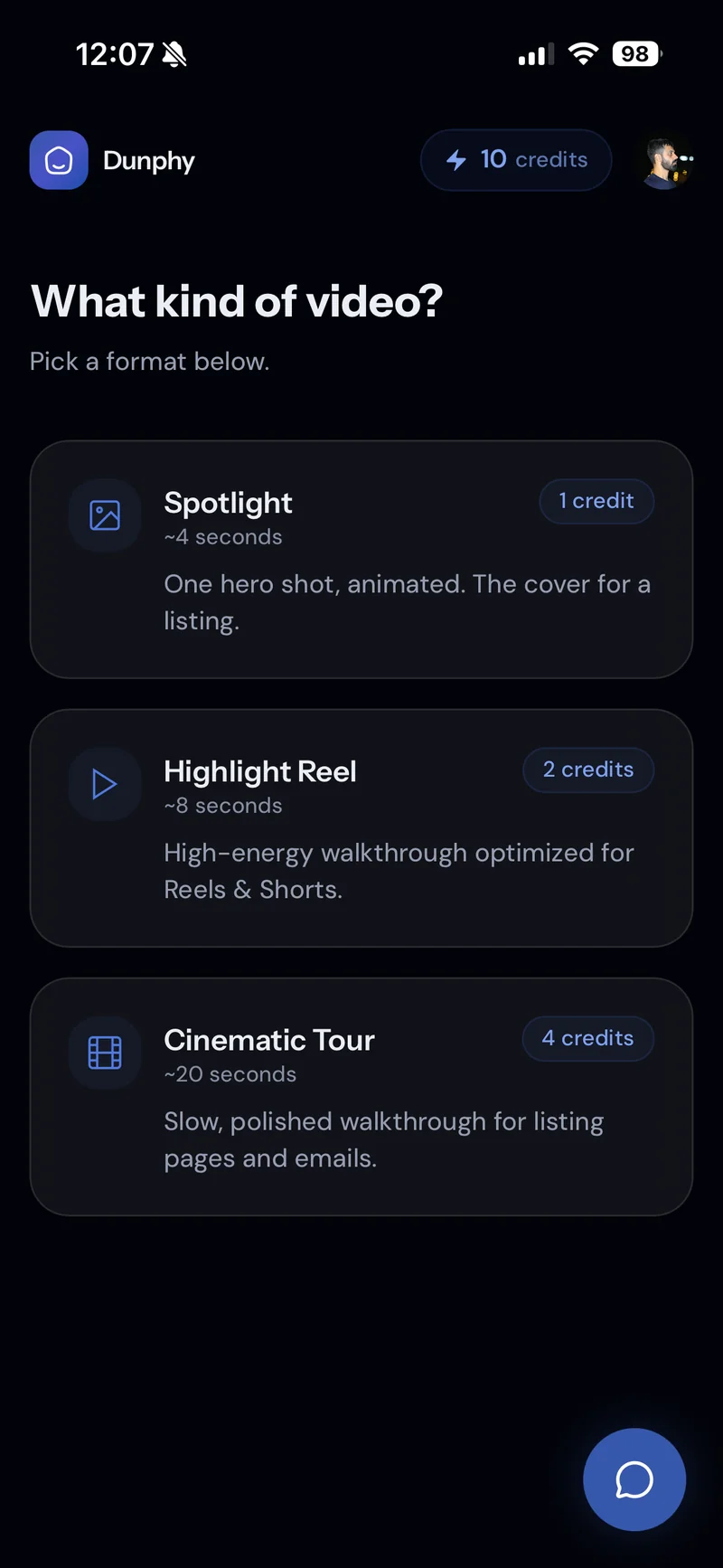
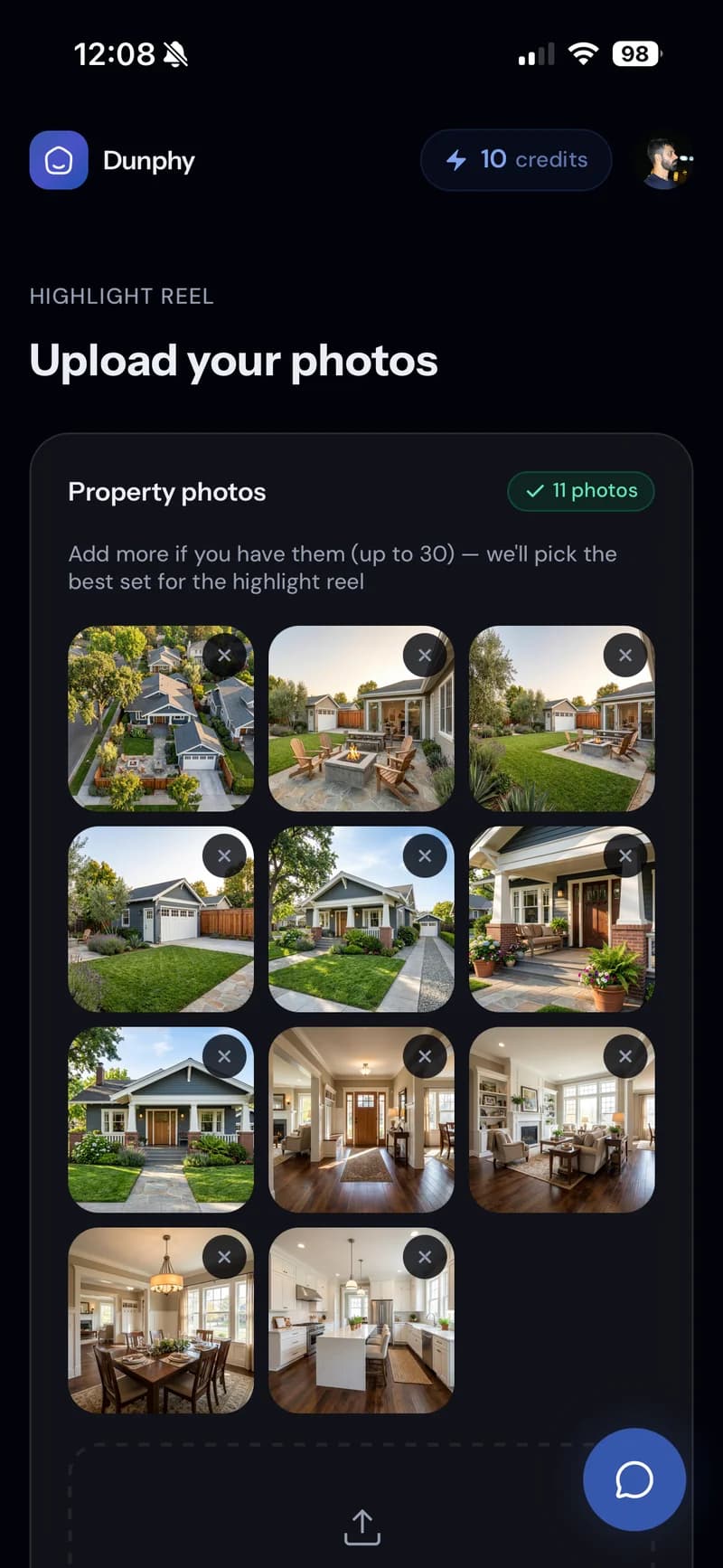
Pick a format
Upload your photos
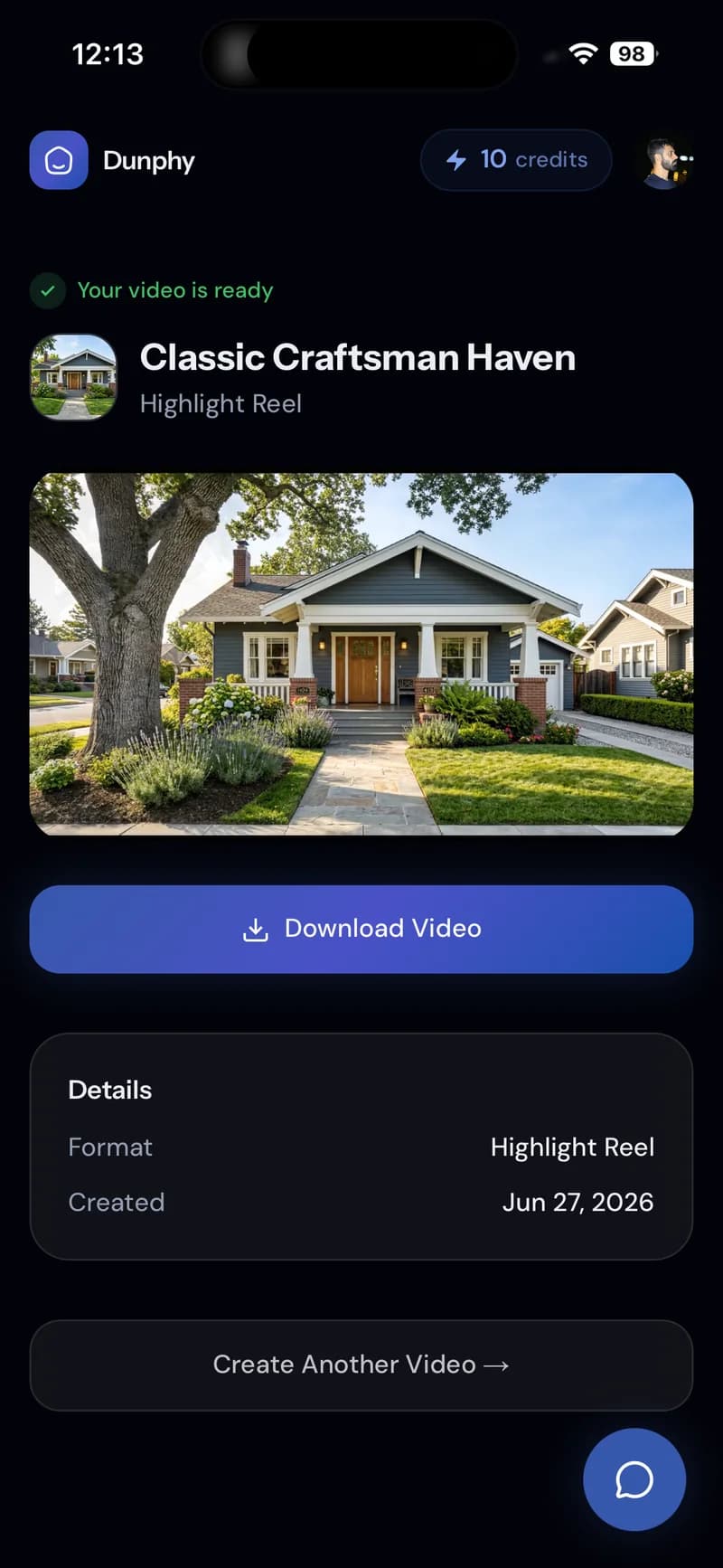
Download
Step 1 — Install
It’s not an app store. It’s just a tap.
Dunphy lives on the web, but it doesn’t feel like it. Open dunphy.typito.com in Safari or Chrome, tap Share → Add to Home Screen, and Dunphy lands on your home screen like any other app. No download, no update queue, always the latest version.
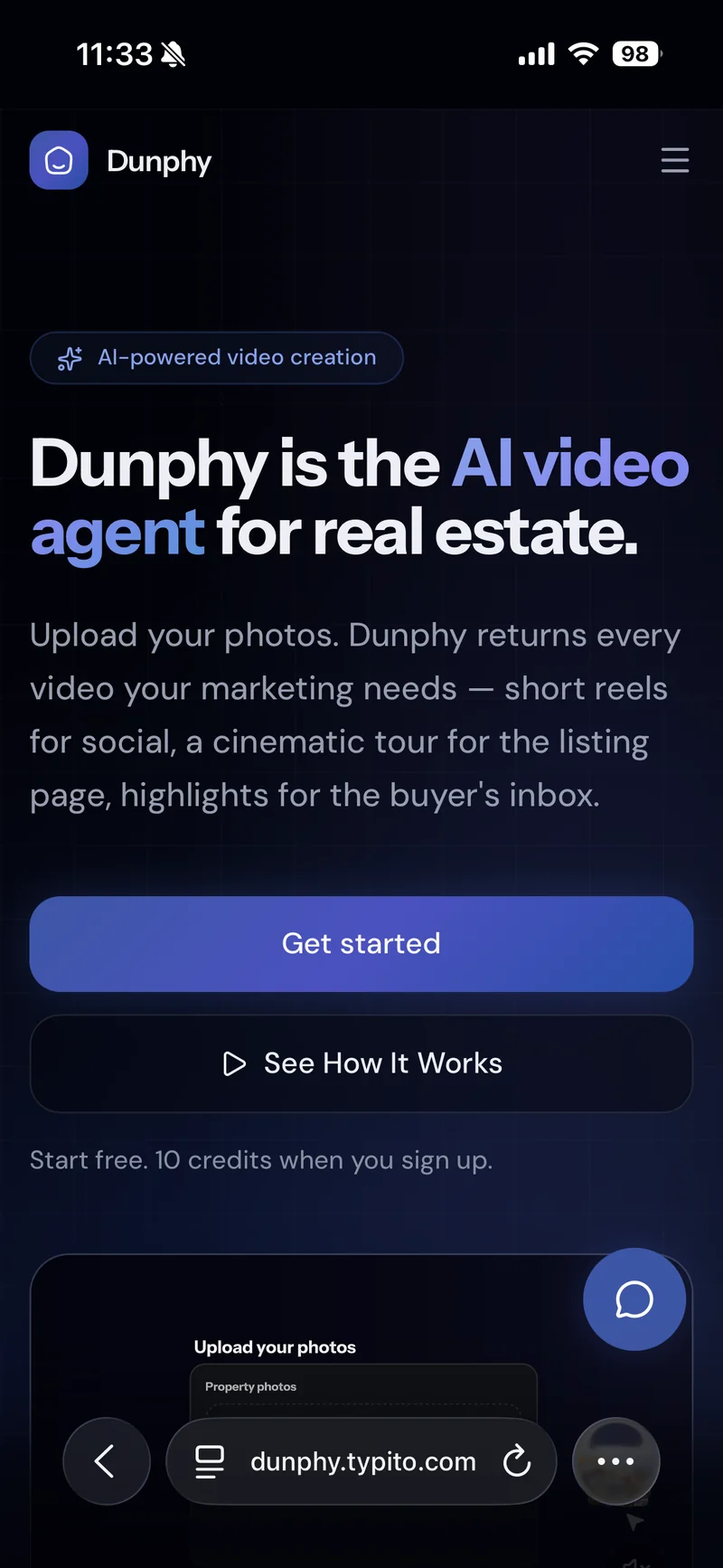
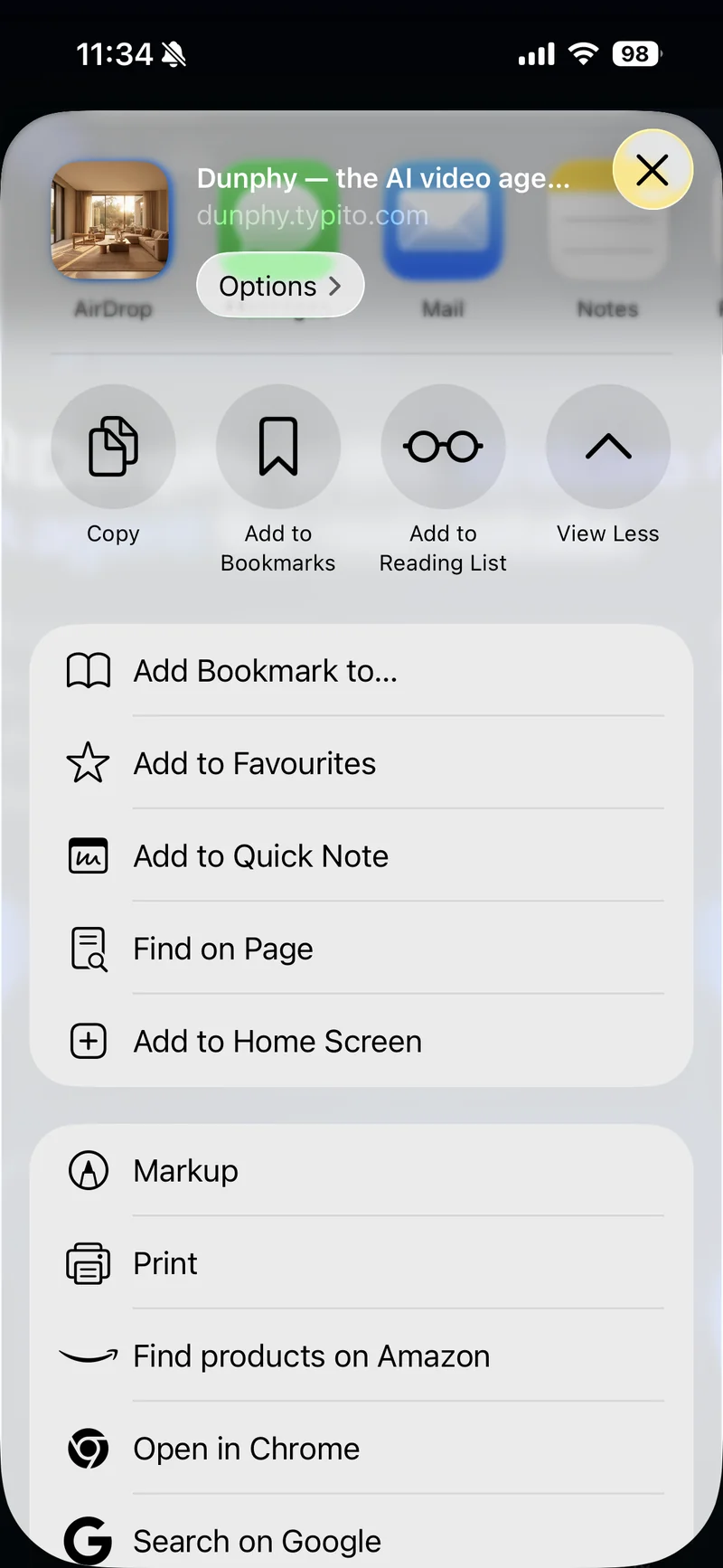
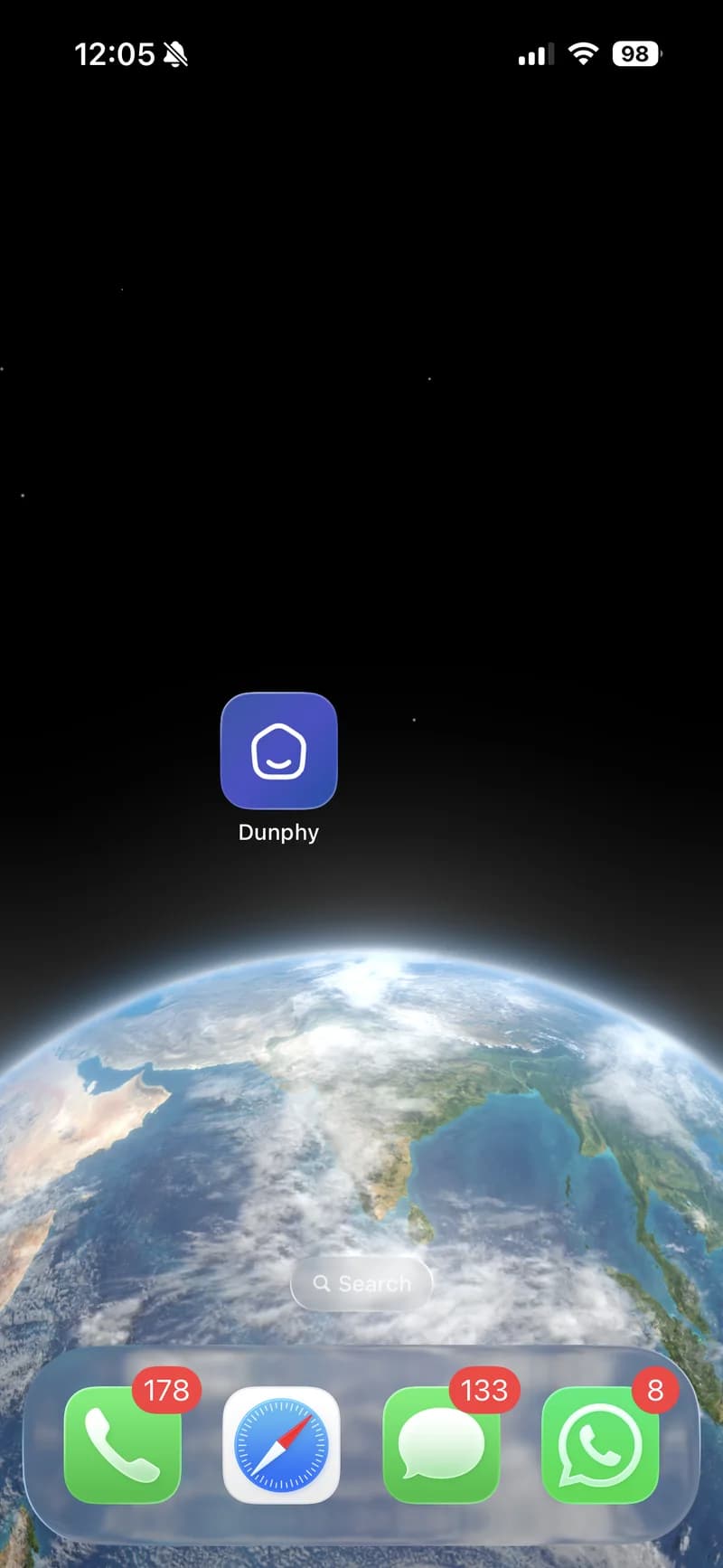
Works the same way on iPhone and Android. No app store approval, no install size, no waiting. Official guides: iPhone (Safari) · Android (Chrome).
Step 2 — Pick your listing
Bring a listing. Dunphy brings the rest.
Chris Bolton, a real estate agent, just listed a home in San Mateo, California. He has eleven photos on his phone — exterior shots in good morning light, a clean kitchen, a few staged living rooms. He wants a Highlight Reel for tonight’s social post and he wants it to be the kind of thing he can ship between showings. Dunphy will even name the project for him.
Step 3 — Create
A Highlight Reel in three taps.
A Highlight Reel is an eight-second walkthrough cut for Reels and Shorts. Chris picks the format, drops his photos, and adds his name to the credits. (Spotlight and Cinematic Tour share the same flow — pick whichever fits the moment.)
Pick a format.
Three formats, one credit minimum. Always the same flow.
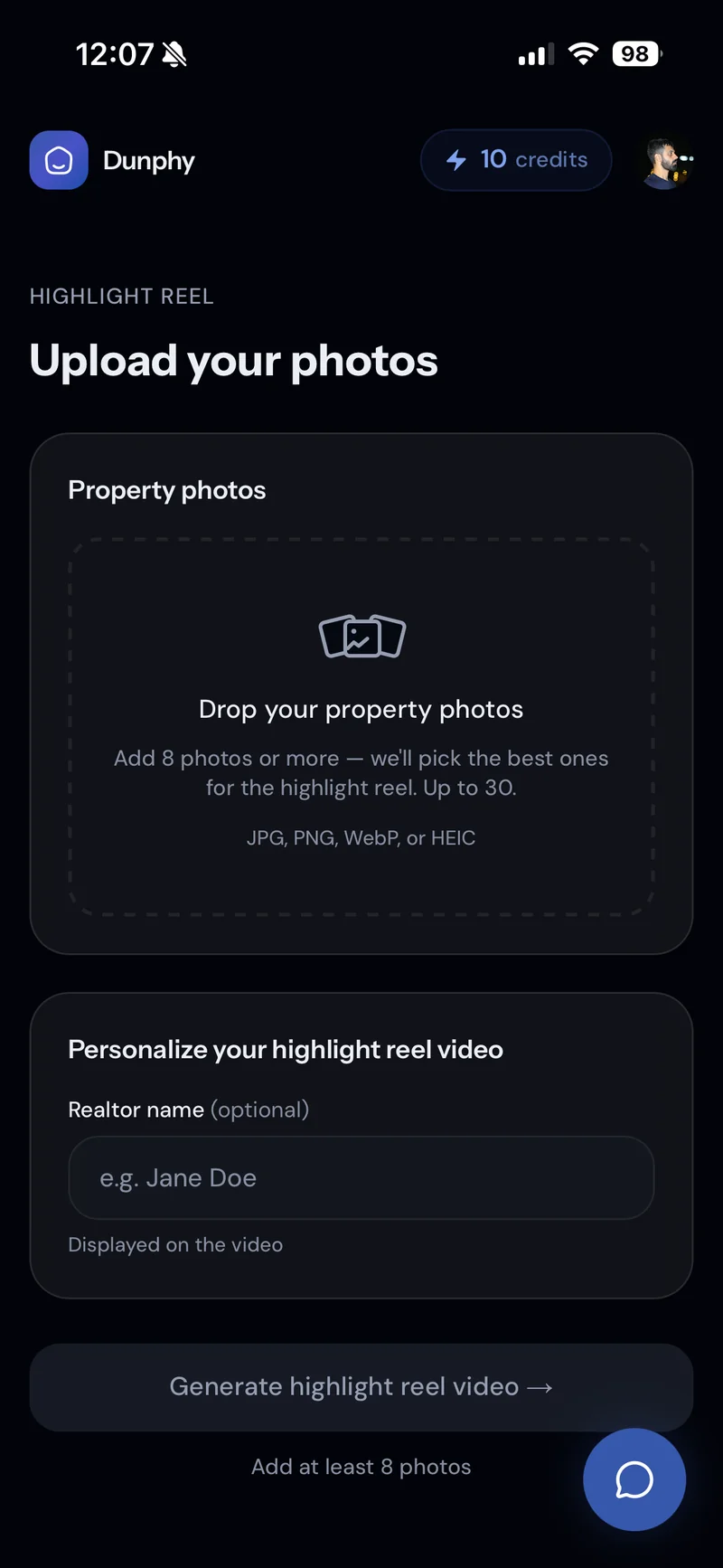
Drop your photos.
Eight or more, up to thirty. Dunphy picks the best set.
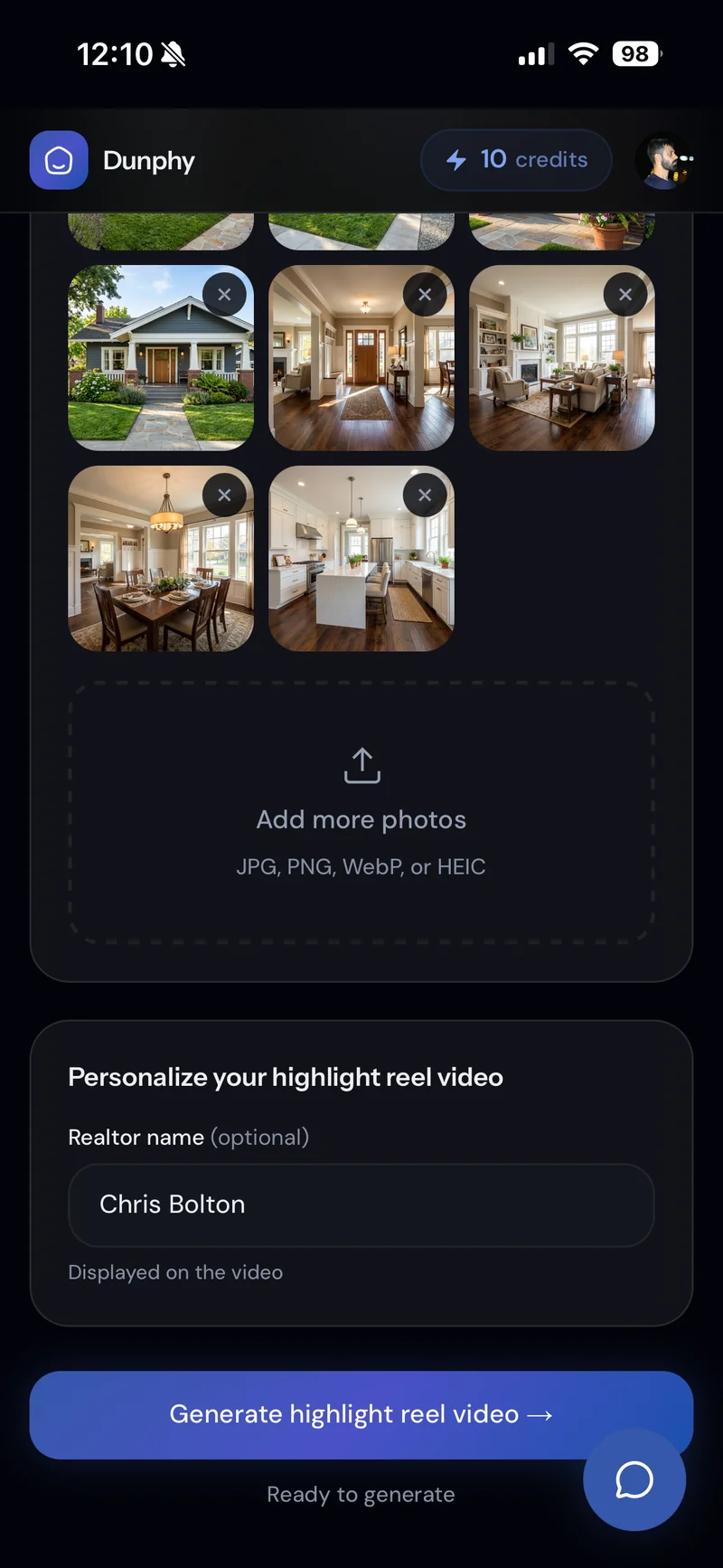
Add your name.
Optional, but it goes on the video credits.
Step 4 — Notify
Tap Allow. Close the app. Go close a deal.
Generation takes two to four minutes. Chris isn’t going to sit watching a spinner — he’s got a showing at 12:30. So he taps Notify me when ready, allows notifications, and walks out the door. When the video’s done, his phone buzzes.
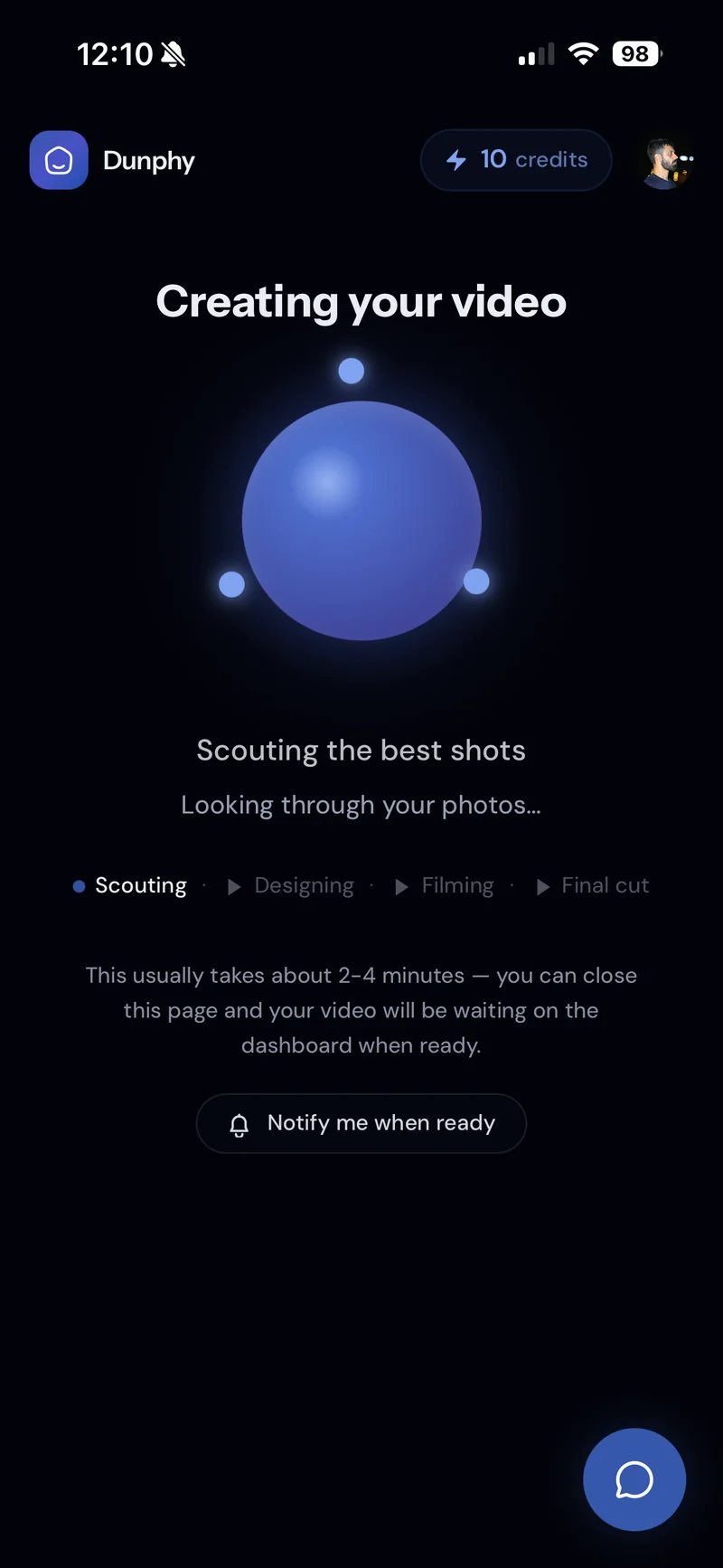
Tap Notify me when ready.
It’s the only thing on the screen that needs you.
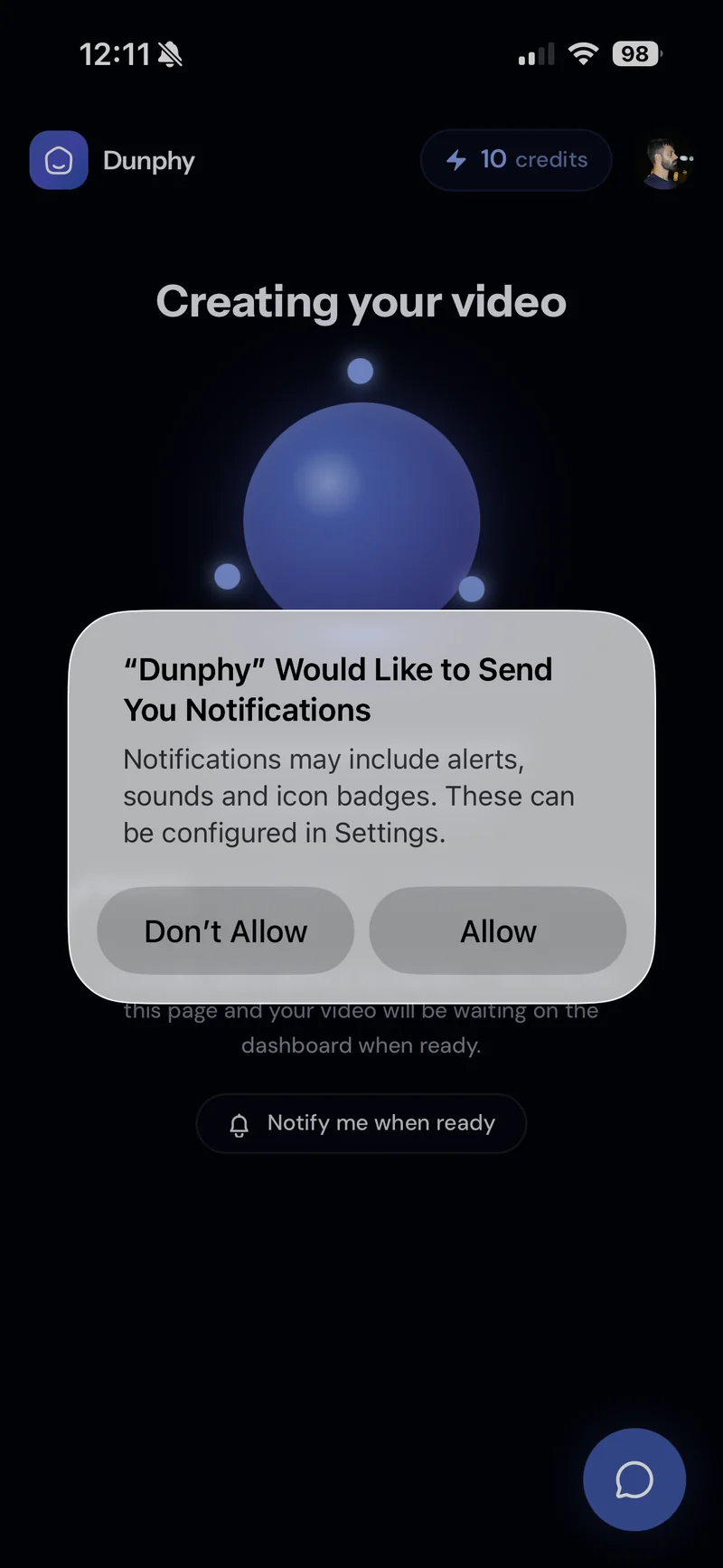
Allow notifications.
iOS does the asking — Dunphy doesn’t see anything else.
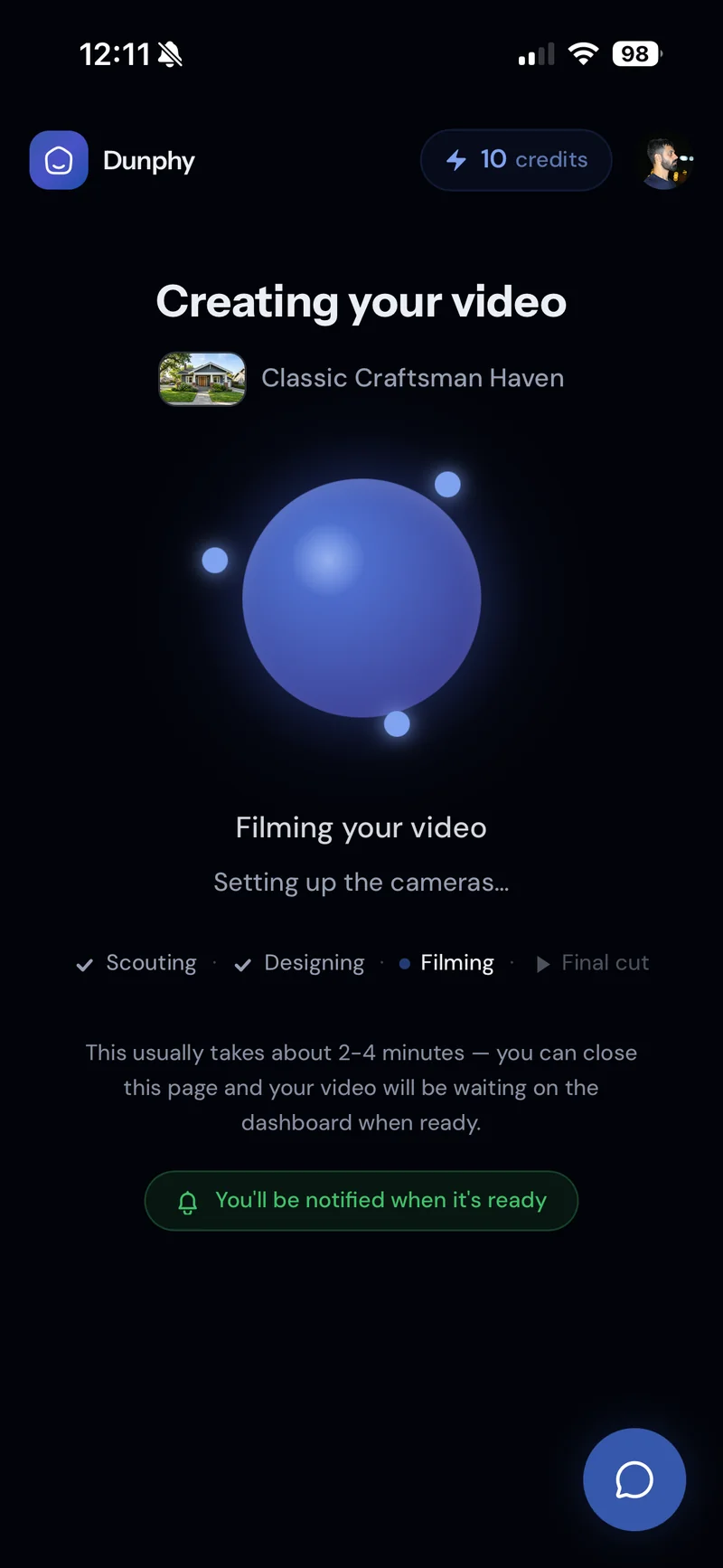
Close the app. Get a push.
Two to four minutes later, your phone buzzes. That’s it.
Mobile-first means more than a small screen. It means Dunphy respects that you’re moving — your phone is the studio, not your waiting room.
Step 5 — Download
Done. Drop it into your story.
Eight seconds of Highlight Reel, Classic Craftsman Haven — a title Dunphy wrote for the project. Tap Download Video. Post to Reels, Shorts, or paste into the MLS feed. Chris is back at the next showing before the buyer’s agent has finished parking.
Need a cover-art version for the listing page or an email- ready cinematic tour next? Tap Create Another Video and pick a different format. Same photos work for all three.
Open it on your phone.
Dunphy is free to try — 10 credits when you sign up. Enough for a Highlight Reel, a Spotlight, and a Cinematic Tour before you decide.

Scan to open on your phone